|
Amplex Support https://support.amplex.net/knowledge-base/refreshing-your-network-equipment-wireless-customer-with-home-phone-service/ Export date: Thu Jun 4 2:56:24 2026 / +0000 GMT |
Refreshing Your Network Equipment (Wireless Customer With Home Phone Service)Currently we have two common network setups for home phone service. Model A 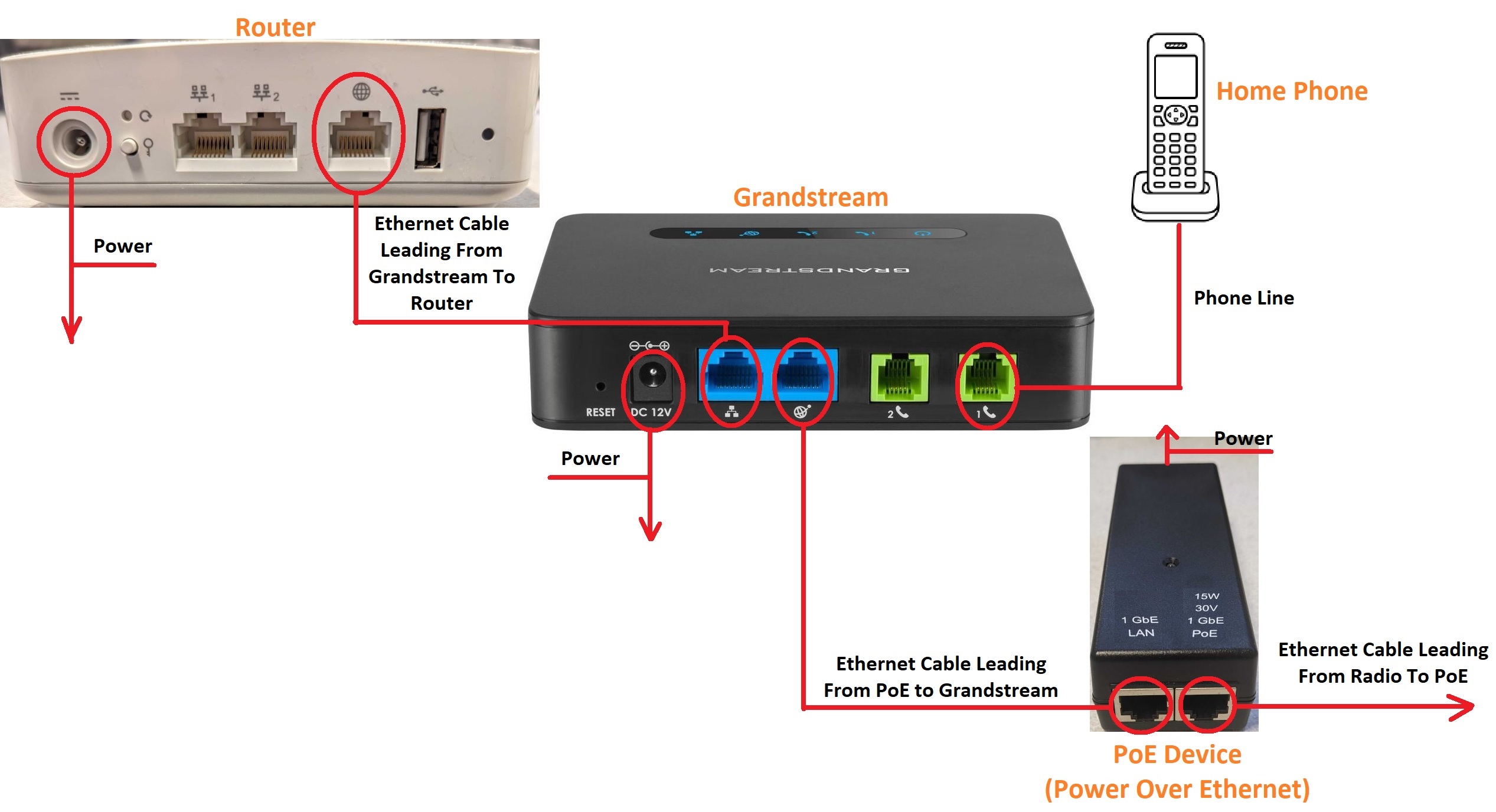 Model B 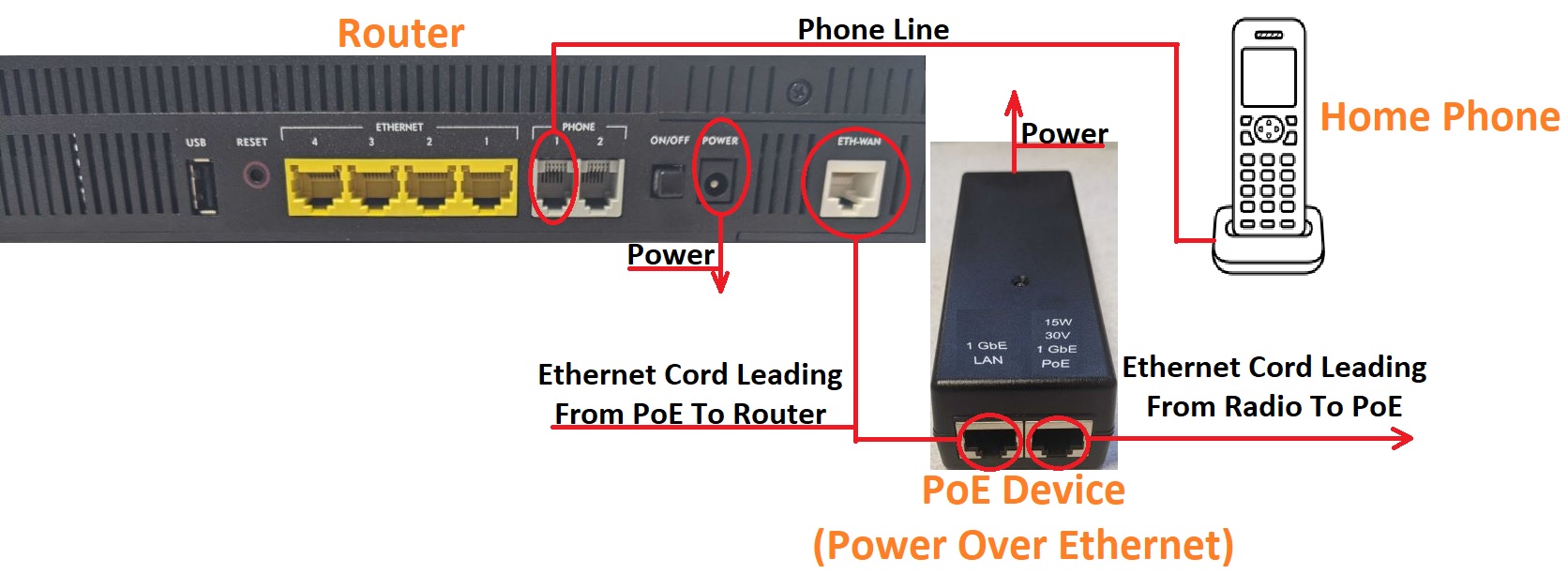 Below are some simple steps we recommend to do monthly that will refresh your network equipment and keep it running smoothly. Step 1. On the back of the router you'll see an Ethernet cable (looks like a large phone cord) plugged into a port that's titled one of the following: “WAN”, “Internet”, or it may just have a picture of a globe over it. Unplug this cable and then plug it back into the same port it was removed from, if it's a solid connection you'll hear a clicking sound. Step 2. Once the cord is plugged back in, follow the cord to the other end and you'll see a small black box with “Grandstream” on the top. Unplug each of the Ethernet cables one at a time and then plug them back in.
Step 3. Once the cords are plugged back in, follow the Ethernet cord that's plugged into the blue port with the icon of a globe under it. This will lead you to the P.o.E. device. This device looks like a small black brick with a green light on it. On one end of the device you'll see two Ethernet cords plugged into it. Unplug each of these cords one at a time and plug them back into the same port, if it's a solid connection you'll hear a clicking sound.
Step 4. While the radio is rebooting, go back to your Grandstream and unplug the power cable from the back for a minimum of 15 seconds. Then do the same thing to the router (you can unplug both of these device's at the same time).
|
|
Post date: 2022-07-25 18:44:15 Post date GMT: 2022-07-25 23:44:15 Post modified date: 2022-07-25 21:02:46 Post modified date GMT: 2022-07-26 02:02:46 |
